


Please note - Command Center is currently in a Beta.
Command Center is Mediafly’s AI assistant for sourcing relevant content and, where enabled, exploring content-performance insights using natural-language questions.
Users can use Command Center to quickly locate assets, explore topics or personas, prepare for meetings, and retrieve defined metrics, without needing to know where the information is stored in Mediafly.
Note - availability relies on your organisation’s acceptance of Mediafly’s AI Terms. Command Center respects your existing Mediafly user groups & permissions. As with any AI feature, always review important answers and the referenced source content before using them externally.
On this page
- What is Command Center?
- Getting organizational access to Command Center
- Enabling Command Center for Users
- Getting started with Command Center
- Command Center FAQs
What is Command Center?
Command Center is designed to answer natural-language questions about your content. It can assist with tasks such as:
- Finding a known asset or content on a specific topic
- Exploring content by topic or persona
- Preparing for a customer meeting
- Retrieving a defined content or performance metric (requires organizational access to Advanced Insights/Intelligence)
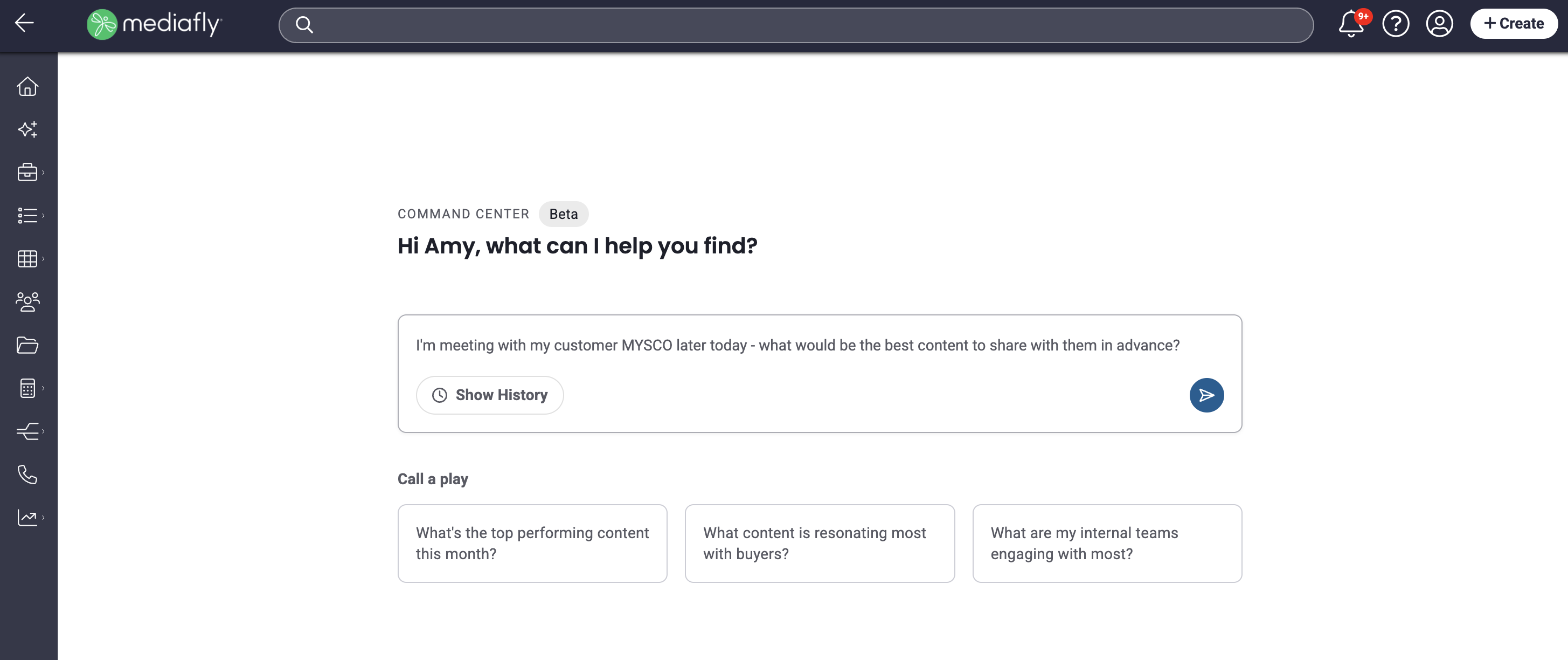
Command Center works with information available through your organisation’s Mediafly environment and the capabilities enabled for that environment. Depending on your configuration, this may include content, metadata, engagement signals, performance insights, Digital Sales Room information, and CRM-related context.
Getting organizational access to Command Center
Command Center is an AI feature, which requires your organization to have agreed to Mediafly’s AI Terms. It is possible to review and agree to these via the ‘Manage Environment’ settings section on Airship, if you have Manage Site permissions.
Enabling Command Center for Users
Once Command Center has been enabled for your organization, access for users is managed by your existing Mediafly permission structure.
Administrators can enable Command Center for an existing group or create a smaller test group before expanding access more broadly. Genie, our AI Enablement Manager explains how here, or read on for the written instructions.
Enabling Command Center via ‘Group Management’
- From Engagement Viewer, click the cog icon in the bottom-left corner
- Select ‘Group Management’
- Search for the group for which you wish to enable Command Center, click on the Group name
- Click ‘Privileges’ tab
- Tick ‘Access Command Center’ and ‘Save’
- If you do not see the ‘Access Command Center’ option, it is likely that your organization still needs to agree to Mediafly’s AI Terms
- You can also create a new User Group, if you wish to assign it to a small group of users first
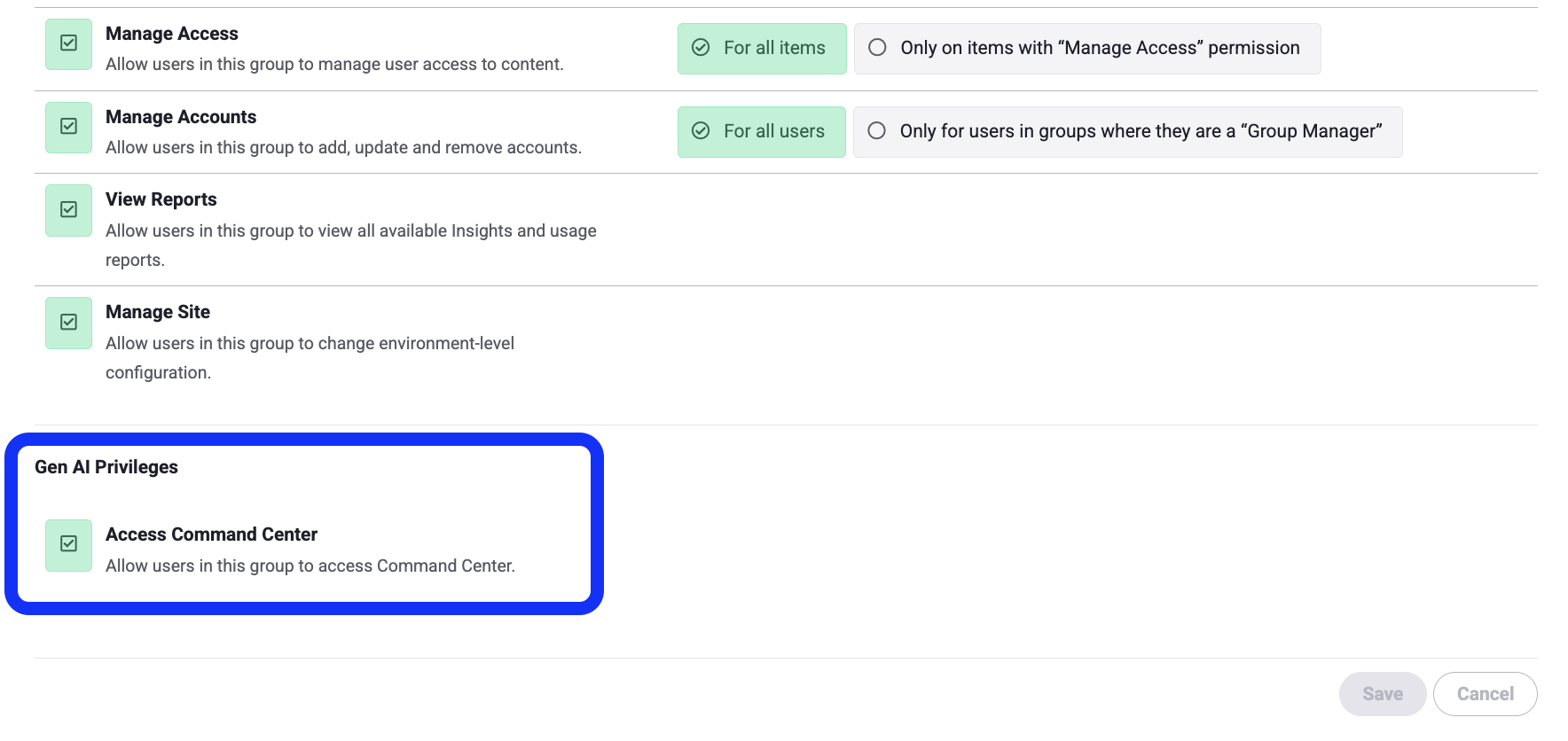
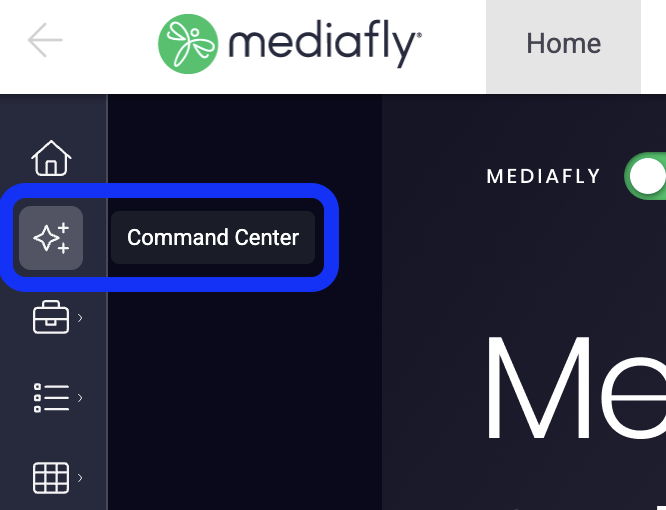
Once enabled, users will see the Command Center icon in the left-hand navigation and can begin using this

Getting started with Command Center
To access Command Center, from the Mediafly left-hand navigation click the Command Center icon.
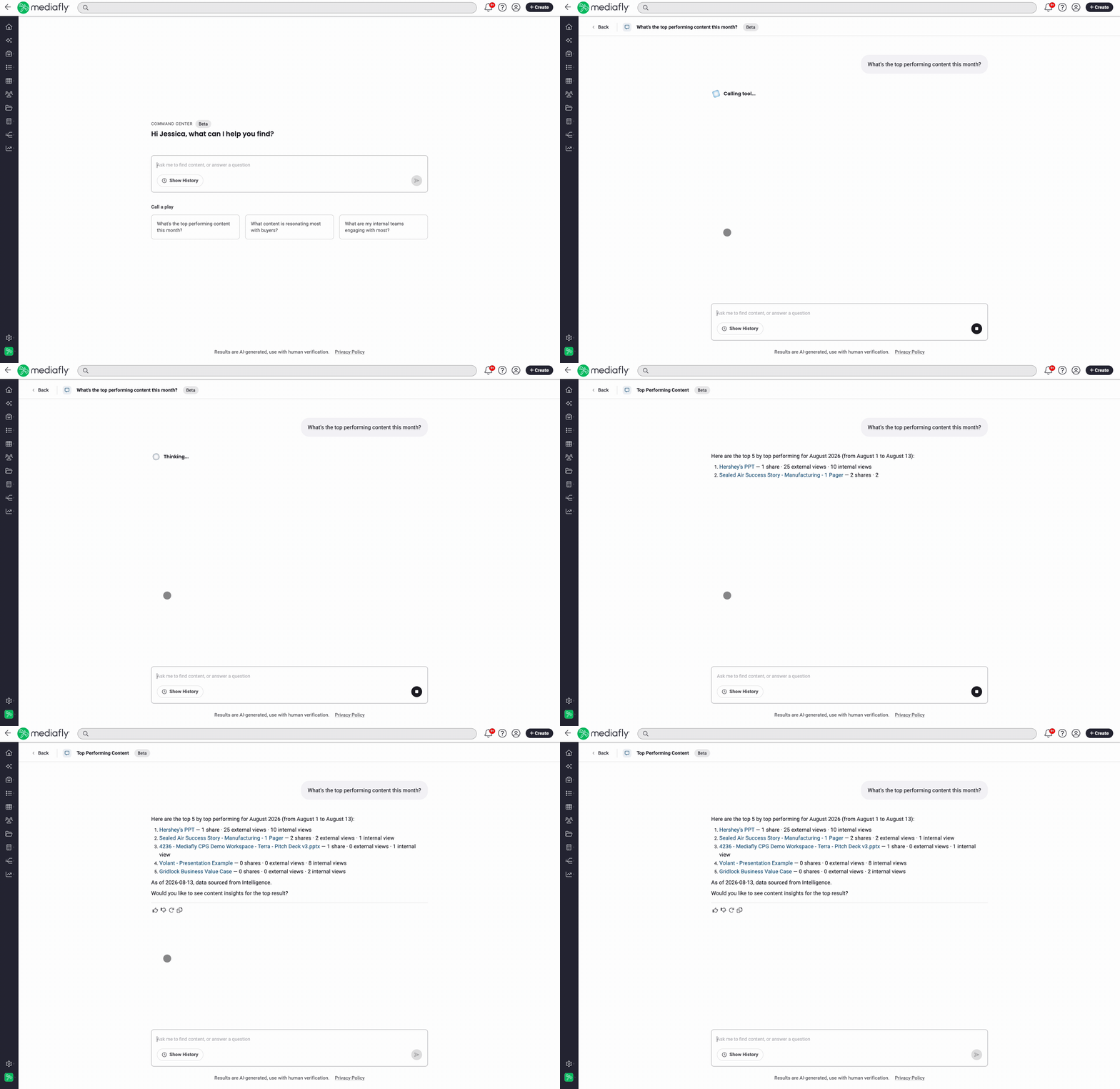
To begin, enter a natural-language question. Start with a simple request, then add context or refine your question based on the response.
The Command Center system is pre-configured with ‘Plays’. These are defined prompts for common tasks, available to guide or work alongside more conversational search usage. The prompts or plays available will vary depending on your system configuration.
Example questions
- “Find the latest customer-facing content about [topic].”
- “What content would help me prepare for a meeting with [customer or persona]?”
- “Which assets have been shared most often this quarter?”
- “Show me content related to [topic] for [persona].”
Providing feedback
All users can use the thumbs-up or thumbs-down controls in Command Center to rate a response. Where possible, add a short explanation—for example, that the result was too generic, the wrong asset was returned, or the answer missed an important detail. This feedback goes directly to our product team and helps Mediafly improve the Command Center experience.
Command Center FAQs
What information can Command Center access?
Command Center works with information available through your specific Mediafly environment and the capabilities enabled for that environment. Depending on the configuration, this may include content, metadata, engagement signals, performance insights, Digital Sales Room information, and CRM-related context.
Availability can vary by product setup. For example, some content-performance questions require Advanced Insights or Intelligence to be enabled.
Does Command Center respect our existing permissions?
Yes. Access is controlled through your Mediafly permission structure. Administrators can enable Command Center for an existing group or create a smaller test group before expanding access.
Command Center is not intended to provide access to another customer’s library or to content outside the user’s authorized scope.
Can it search Folders, Workspaces, Collections, and Digital Sales Rooms?
Broad content search is available, but structure-aware retrieval is still evolving. You may experience some limitations when asking for content specifically within a folder, workspace, Collection, or Digital Sales Room. Command Center’s ability to understand your specific library structure and terminology will continue to improve over time.
Can it read and summarize the actual contents of a document?
Command Center can read text content in the following documents types -
- PowerPoint — by slide, including speaker notes as well as on-slide text
- Word — by page
- PDF — by page
- Video and audio — transcript, as one block (no page or timestamp structure)
- Images — OCR text, where OCR has run
There are certain limits to this -
- A document longer than 200 pages cannot be read in one go — user would have to ask for a page range to look at.
- Text doesn't exist until processing finishes - a recently uploaded file will return a "not extracted yet" message, and will try again later, rather than reporting the document as empty.
How accurate and consistent are the answers?
Command Center is designed to provide useful, grounded answers, but generative AI can occasionally return irrelevant results, miss an intended asset, misunderstand organization-specific terminology, or produce different results for the same open-ended question.
The best results come from specific prompts that include useful context such as the customer, topic, persona, time period, or desired content type. Users can provide feedback directly through the thumbs-up and thumbs-down controls in the experience.
Can Command Center take action, or does it only answer questions?
Currently, the experience is focused on search, insights, and guided workflows. You will also see ‘Plays’. These are pre-entered prompts for common tasks, alongside conversational search.
Some workflows may guide users toward related actions, such as preparing content for a meeting or working with Digital Sales Rooms.
What controls do administrators have?
Administrators can control who receives access by assigning Command Center permissions to groups.
Future available configuration options may include feature access, prompts, or models. Some changes may require guidance or assistance from Mediafly - please contact our team via a ticket on the Community if you need support.
What happens when Command Center cannot do something?
The experience is designed to state limitations directly instead of implying that an unsupported action was completed. Some requests involving email, scheduling, editing, tagging, workspace filtering, or business-case calculations may be declined or redirected to a supported alternative. Availability will change as new capabilities are released.
What should we do if an answer is wrong or not useful?
Users should rate the response and add a short explanation when possible—for example, that the result was too generic, the wrong asset was returned, or the answer missed an important detail. This feedback helps Mediafly improve the experience.
For important customer-facing materials, users should also verify the answer against the underlying source content before sharing it externally.
Replies have been locked on this page!