


The AI Value Report Summary delivers a clear, quantified value story with prioritized recommendations, shaped by your prompt, so stakeholders can grasp the essentials without parsing the full analysis. Use its consistent narrative across executive and procurement conversations, internal enablement, and external follow-ups to anchor next steps and keep everyone aligned on objectives, impact, and decision criteria.
Notes:
- The AI Value Report Summary is available to ToolBuilder users only.
- AI Tools are only enabled for orgs that have signed the AI addendum or the most recent Mediafly MSA. If you’re unsure if your org has AI allowances, please contact your CSM.
The AI Value Report Summary is automatically generated and added to Value Assessment output reports for any template where you’ve already set up the AI prompt and Report Tag once.
Set up Value Summary Prompt (Admin/Author)
Before the AI Value Report Summary can appear in an output report, you’ll need to configure the prompt and place the AI Summary Report Tag in your output report template (you only have to set this up once per output report template). Because the AI Value Report Summary can only use information included in the generated report itself, be sure your output report contains all key data points and narrative from the analysis that you want reflected in the summary and referenced in your prompt. Also ensure your analysis includes a page that allows users to generate the report so the summary has a report to run against.
Part 1: Configure the AI prompt and locate the Report Tag
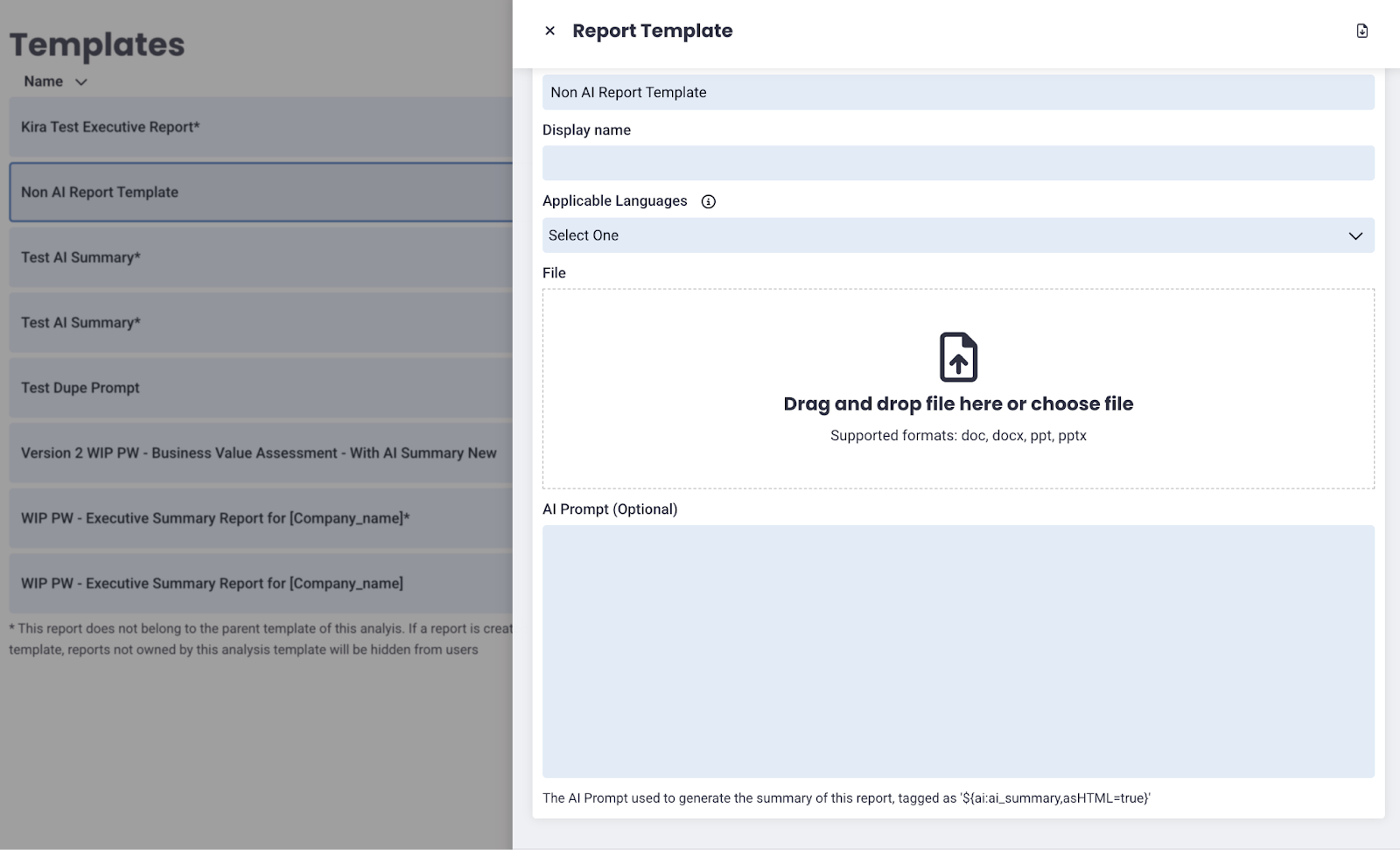
- From the analysis UI, open the Template menu and select Open analysis editor, then choose Reports.
-
Click on the report you’re using.
Note: The report(s) without an asterisk () next to the title is the one currently used in the analysis. - Scroll down to the AI Prompt (Optional) section.
- In the AI Prompt window, write the instruction the AI should follow when generating the summary.
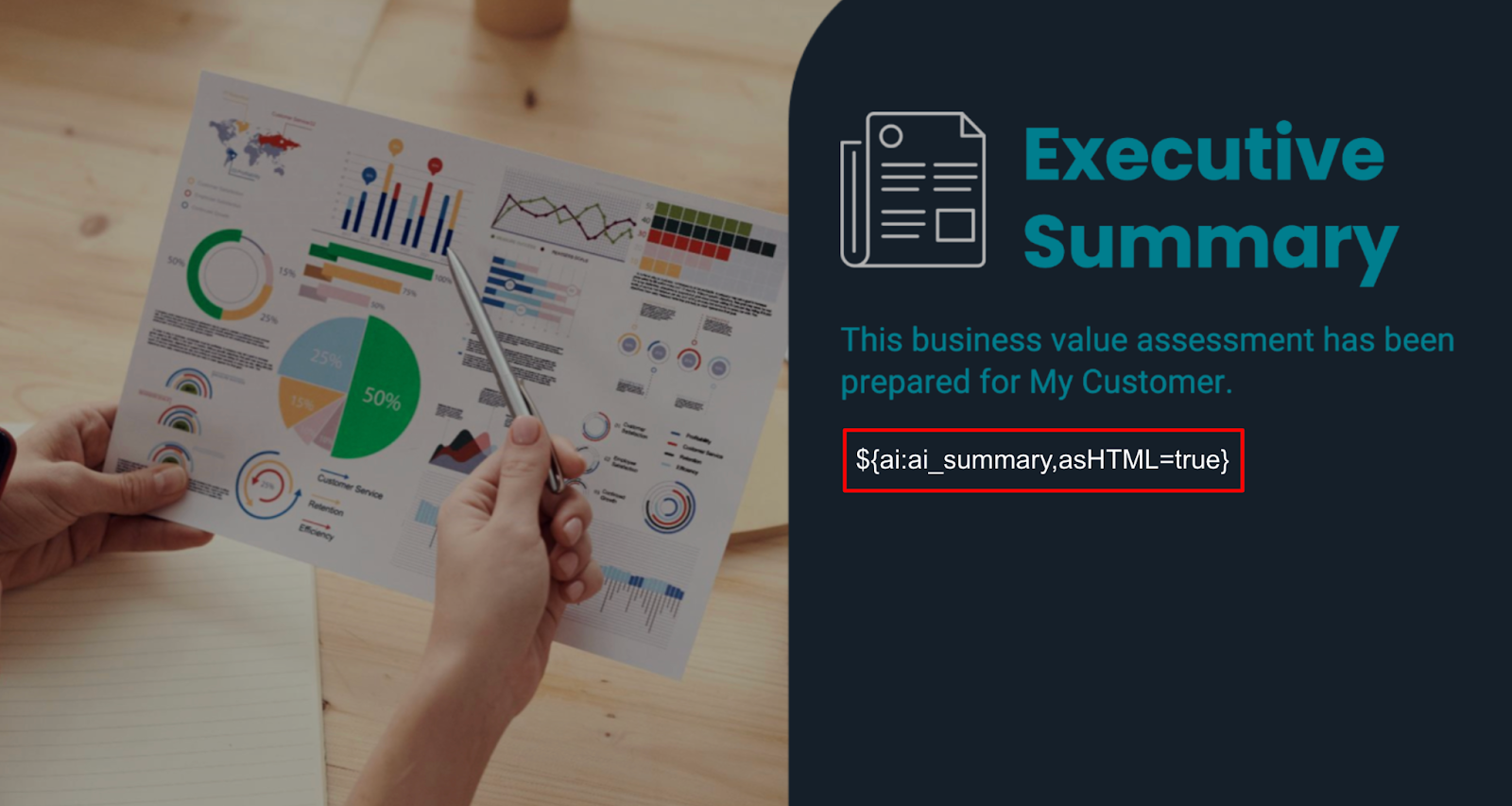
Pro tip: Be explicit about audience, tone, length, and any data points to emphasize. - Below the prompt window, find the report tag and copy it ${ai:ai_summary,asHTML=true}
You will paste this tag into your slide deck in Part 2 (first-time setup). - If you make any changes to the prompt, don’t forget to click Save and Close. If you’re uploading a new slide deck report template, leave this window open and proceed to Part 2.
Part 2: Add the AI Summary Report Tag to the output report (first-time setup)
If this is the first time you’re using the AI Summary Report Tag, you’ll need to add it to the output report template:
- Open the slide deck you want to use or are currently using as the output report template.
- Paste the Report Tag (copied in Part 1, step 5) into the slide deck wherever you want the AI Summary to appear in the final output report.
- Save the slide deck.
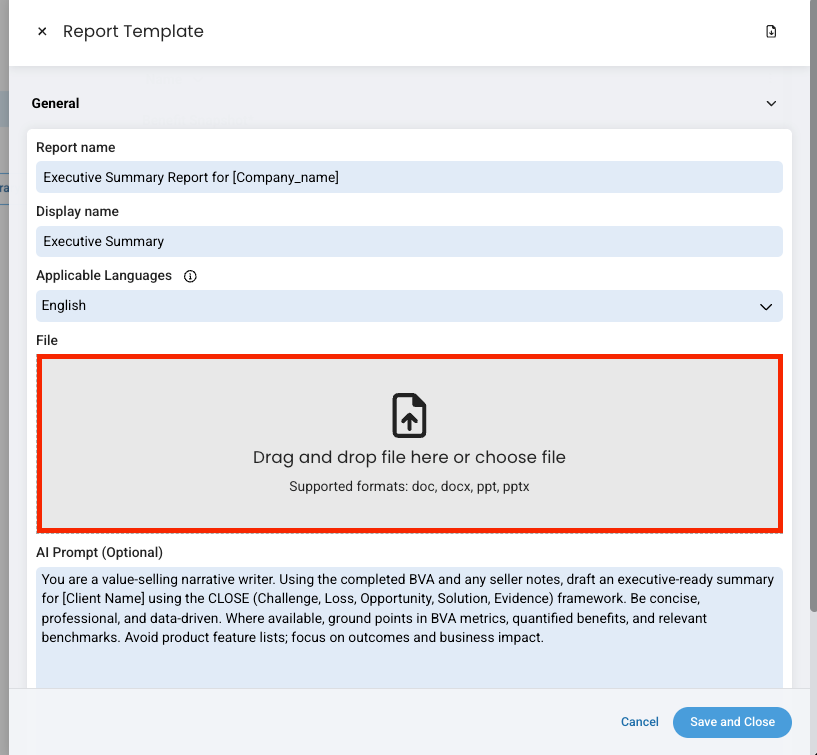
- Return to the report template editor from Part 1 (or go to your Value environment > Administration > Analysis Templates > Select template > click Edit Template > Template Menu > Open Editor > Reports > and select the report)
- Upload slide deck file
- Save and Close
That’s it. Going forward, whenever you generate the report (from any analysis) using this report template:
- The Report Tag will automatically generate and display the AI Value Report Summary in the output report, based on the configured prompt & analysis the report is being run for.
- If you want to remove the AI Summary or change where it appears in the output report, simply repeat Part 2, moving or deleting the Report Tag, and uploading the file to the report template. As always, don’t forget to click Save.
Generating the Report + AI Summary (End User)
How it works:
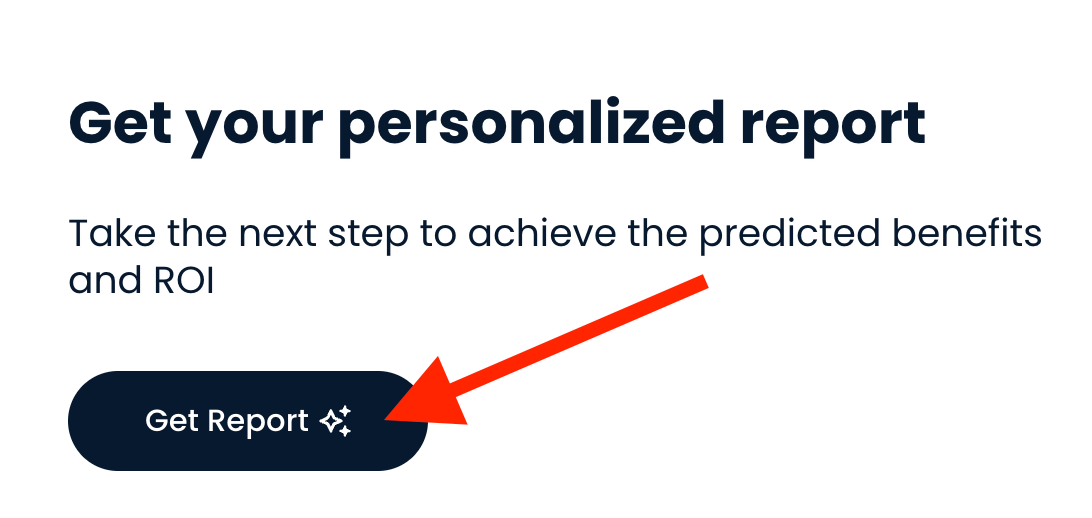
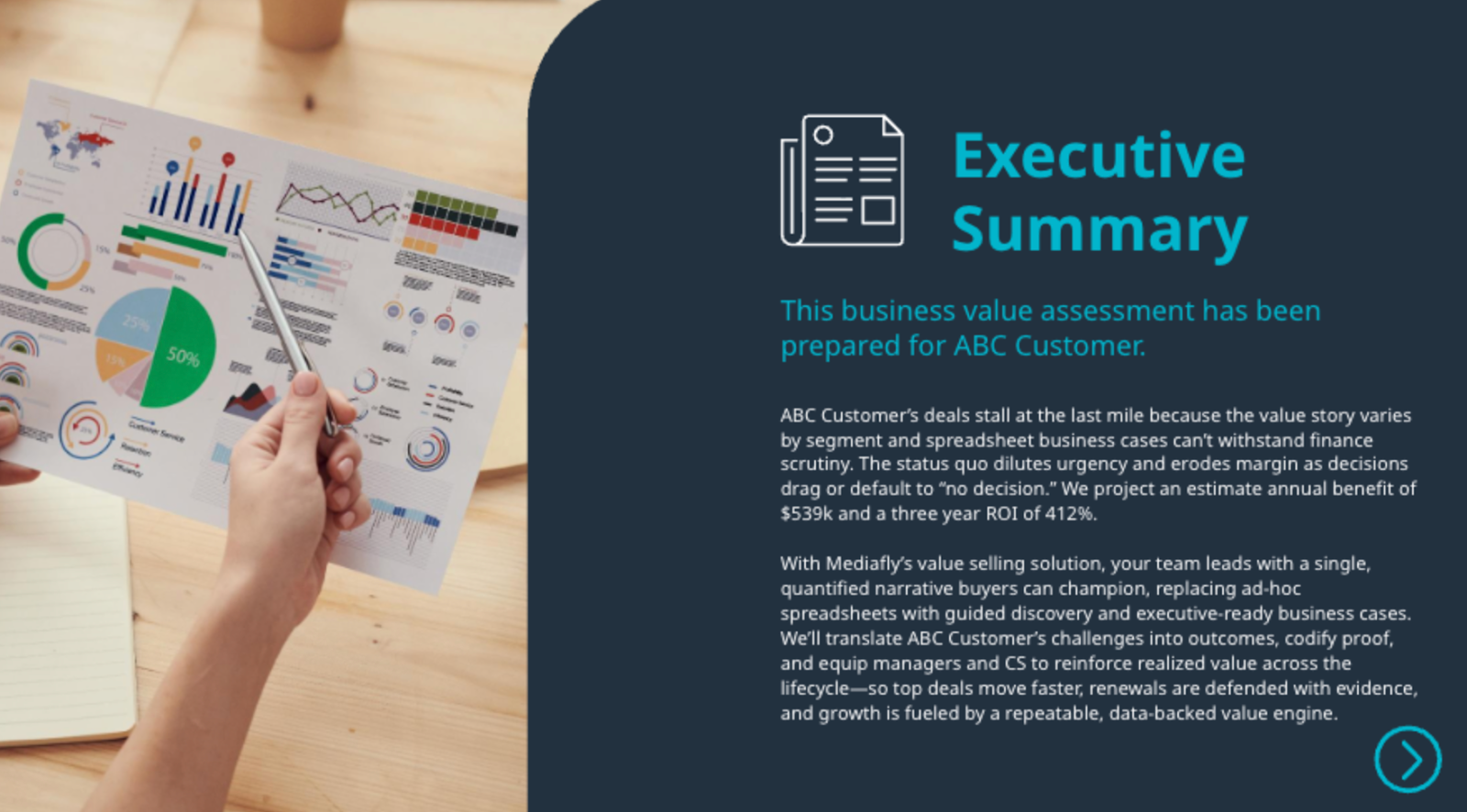
- Complete the Value Assessment and generate your output report that captures the customer’s challenges, goals, proposed solutions, and quantified benefits by clicking the “Get Report ✨” button; as part of that process, the AI synthesizes your analysis and notes into an embedded executive summary.
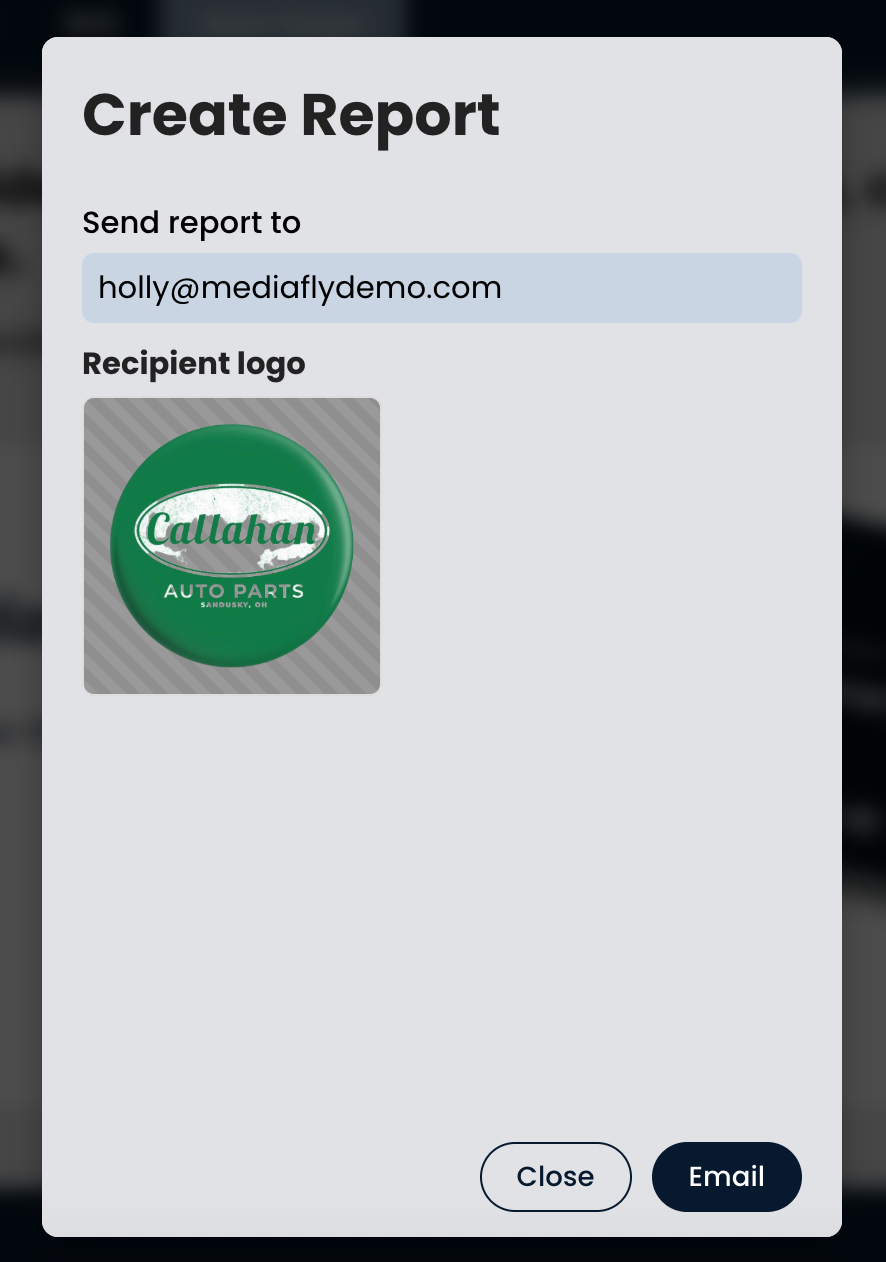
- Enter the recipient email (you may be sending this to yourself so you can review & update before sharing with your customer or to a teammate, you decide) and click Email.
- You (or your chosen recipient) will receive the finalized report with the AI summary embedded, so you can then compose your own email or update/share the report with your prospect and their leadership, procurement, and other stakeholders.
*The image below shows a potential AI Generated Summary, the entire report is sent in the email.
Why it wins:
- Use the AI summary to present a clear, quantified value story and prioritized recommendations without requiring stakeholders to parse the full analysis.
- Leverage the consistent narrative to streamline executive and procurement conversations, and to anchor next-step proposals (e.g., pilots, phased rollouts, or investment plans).
- Reuse the summary across internal enablement and external follow-ups to maintain alignment on objectives, impact, and decision criteria.
Prompt Writing Best Practices
Strong prompts lead to strong results; when you’re clear, specific, and thoughtful, the AI can be too.
- Specify who is creating the summary, and the purpose - eg. 'You are a senior account director. Your task is to write a concise, executive-ready summary of a quantified return on investment, using only the inputs provided. The summary must clearly answer - why is this important; what value will be created; the credibility of the numbers.'
- Specify the audience for the report summary, and what they care about - eg. 'executive decision makers (CIO, CFO) who care about revenue, profitability and organizational credibility.'
- Provide tone & style guidance - eg. 'lead with business outcomes, write in plain language. Do not include hype, buzzwords or vendor acronyms.'
- Be clear what AI should do if it is unsure - eg. 'If inputs are incomplete, state limitations rather than guessing. Use the numbers provided; never invent data.'
- Specify the format - eg. 'Executive summary - 3-5 bullet points, Financial Credibility - 2-3 key outcomes, Key Takeaway - 1–2 sentences'
- Outline Specific Guardrails (Hard Rules) - eg. 'If a metric is not provided, clearly state it was not quantified. Never exaggerate ROI or confidence levels.'
- Clarify the output length - eg. 'Maximum: 150 words. Must fit on a single summary page.'
- Add context - Point to key data, systems, and examples the AI should use (or avoid).
- Refine, don’t accept - Skim for gaps, tweak the prompt, and rerun instead of using the first draft.
Need Assistance?
Your Mediafly Value Engineer can provide additional support. They can also help you to test out the AI prompt you plan to use, before enabling it in your production template.
Replies have been locked on this page!