


To enable the Mediafly Notetaker bot for Zoom you must meet the following criteria:
- The master setting for the notetaker must be enabled. Open a support ticket if you need this enabled.
- Be an admin user in Coach.
- Be an admin user for your company’s Zoom account.
Authorizing the notetaker will allow it to automatically join meetings and start recording without requiring the meeting owner to explicitly allow the bot to record in every meeting.
- Log into Coach and go to the Integrations Settings page located here: https://users.execvision.io/admin/integrations
- Click the Mediafly Notetaker for Zoom button located toward the top of the page
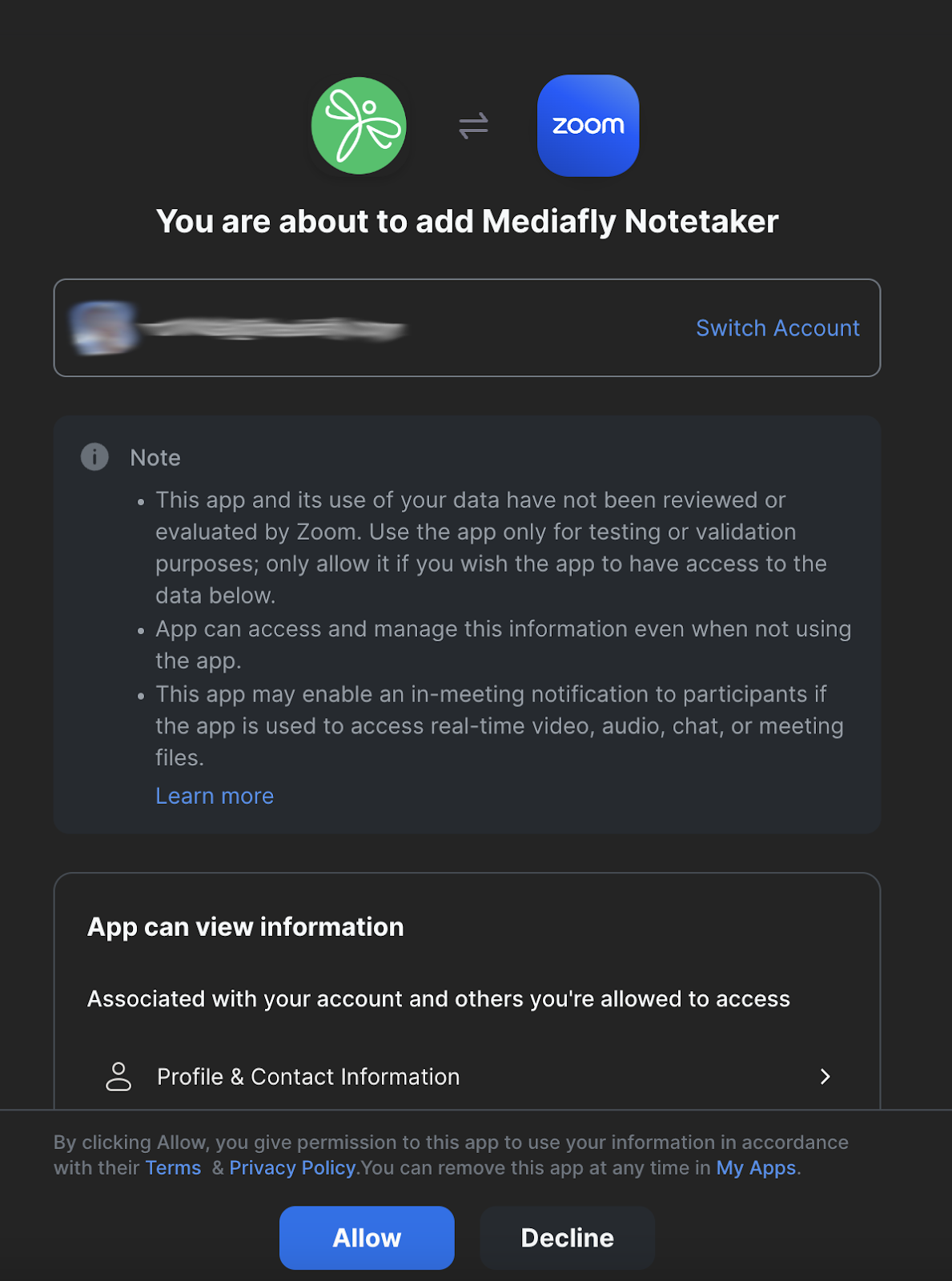
- Authorize the Notetaker to join Zoom meetings by clicking Allow
-
Enable Local Recording Capability
The notetaker requires local recording capability based on Zoom’s recording bot requirements. Follow the steps below to enable this for all users in the account. This does not force users to use local recording, it will only make it an option when starting a recording.a.) Sign in to the Zoom web portal with an administrator account.
b.) Click Account Management in the navigation menu.
c.) Click Account Settings.
d.) Click the Recording tab.
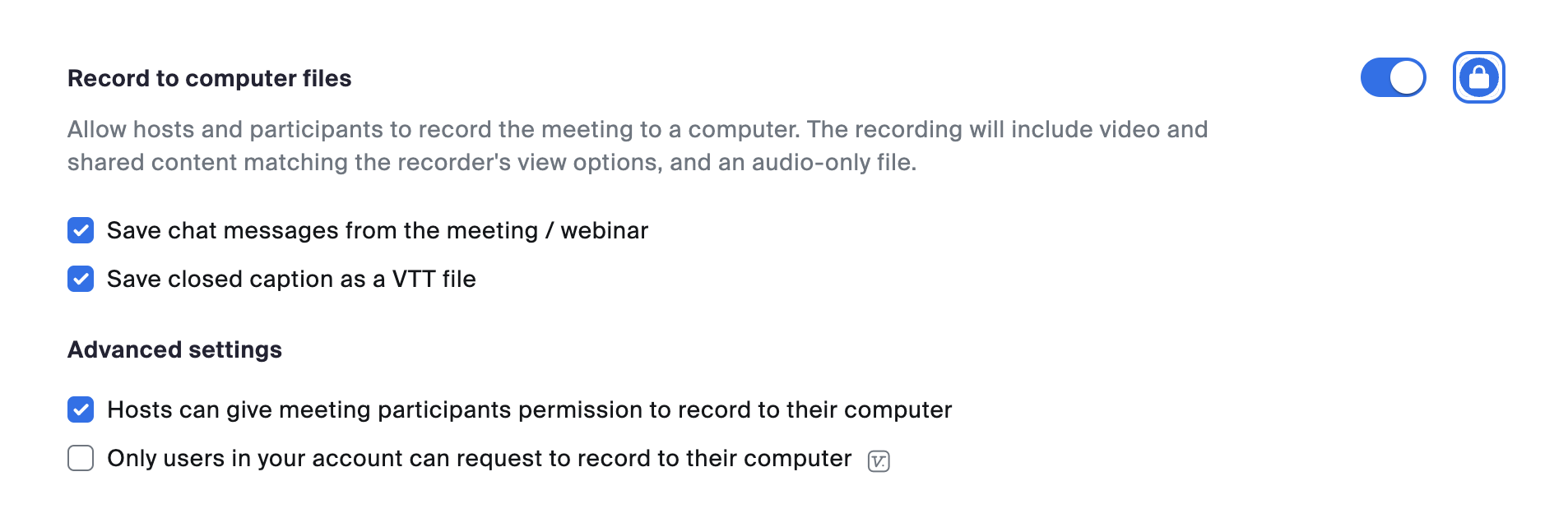
e.) Under the Recording section, click the Record to computer files toggle to enable it.
f.) In the Advanced settings, uncheck Only users in your account can request to record to their computer.
g.) Click the Lock icon to prevent users from overriding these setting in their local settings.
These settings should look like the screenshot below once complete:
-
Connect and Authorize Calendar Integration
Each user that wants the notetaker to join their meetings must connect their calendar.NOTE: Mediafly is currently migrating all customers to use Intelligence calendar integration using a service account. If you have already made the transition, there is nothing else you need to do. However, if you have not transitioned yet, follow the procedure below to connect each user's calendar.
Each user must:
a.) Go to URL: https://users.execvision.io/admin/profile.
b.) Click “Connect” and then follow the prompts to authorize the integration. -
Contact your CSM or Mediafly Support
If you are transitioning from the old Mediafly recording bot to the new Mediafly Notetaker for Zoom, contact your CSM or open a support ticket once you have completed the steps above. They will then complete the change to the new Notetaker for you.
Using the Mediafly Notetaker for Zoom
Once the notetaker is enabled in Zoom and a user’s calendar is connected, the notetaker bot will automatically join either 1) all meetings, or 2) all meetings which have an external participant, depending on configuration. The notetaker bot acts like any other meeting participant and will either enter the waiting room or enter straight into the meeting based on Zoom configuration.
NOTE: If you do not want the notetaker to record a specific meeting, do not admit it from the waiting room or remove it as a participant from the meeting directly.
BEST PRACTICE: Do not use personal meeting room links for meetings you want to record. In the case that multiple meetings are back-to-back and may overlap, you may get multiple bots join your meeting because the meeting links are exactly the same.
Deauthorizing the Mediafly Notetaker for Zoom
To remove all permissions for the notetaker within Zoom, navigate to the Zoom Marketplace here: https://marketplace.zoom.us/apps/jMxZ8ce5SNKHYDjjAfvOEw
Scroll to the bottom of the page and click “Remove”.

This will effectively disable the ability for the notetaker to join meetings and record automatically. To completely disable the notetaker, all users must deauthorize their calendar, or the master setting may be disabled by contacting support.
Replies have been locked on this page!