


Call Card Overview
A call card provides you access to a call recording's details, screen views, talk tracks, transcripts, interactive coaching, commenting and organizing, and much more.
Explore the Coach Call Card:
- Call Details
- Coach / Share / Sync to Salesforce / Delete
- Call Controls
- Talk Tracks
- Keywords & Topics
- Transcript
- Comments
- Call Summary
- Scorecard
- Activity
- Details
- Tags/Library
Call Details
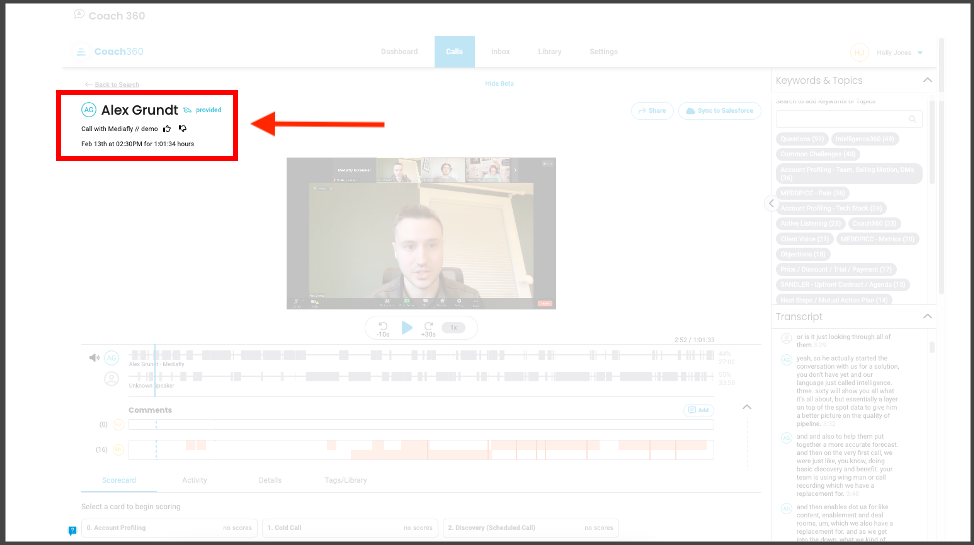
Displayed on the top left of the call card, call details provide an overview of the call that you’re viewing. Call details can include items like call owner, contacts, call date, call duration and more depending on your custom configuration.
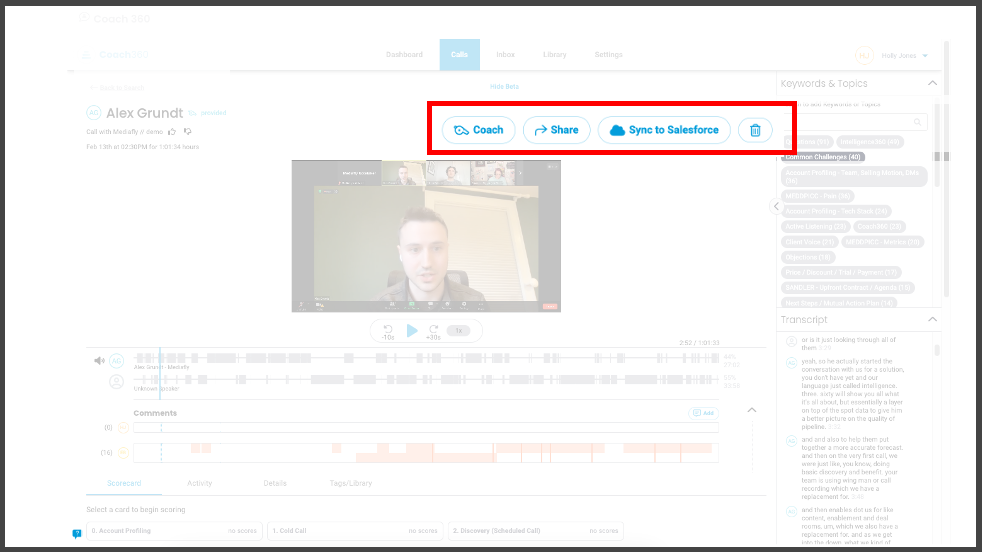
Coach / Share / Sync to Salesforce / Delete
These buttons appear based on your Coach permissions, you may see all, some, or none of them.
- Coach: coach click to begin call coaching, or you can request call coaching
- Share: click to share call with team members, other users, teams, departments, or email
- Sync to Salesforce: click to sync the call to your connected Salesforce
- Delete: delete the call from the call library
Share
Sharing a call allows users to share a call internally where the system sends a message to the Coach inbox of the user. Users may also share the file externally by keying in email not registered in the system.
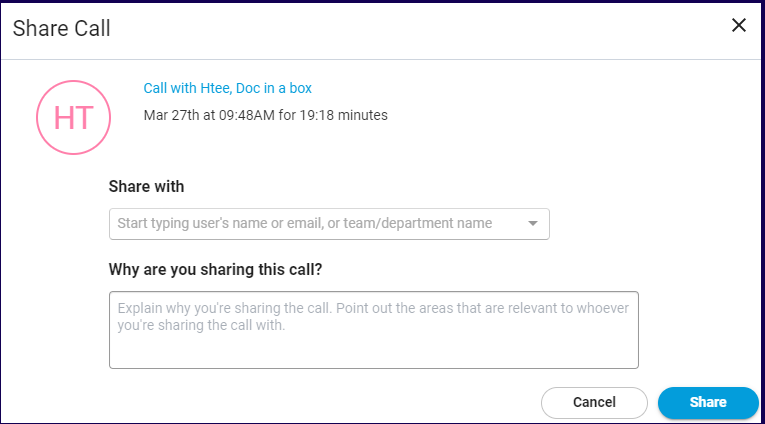
When the share button is selected, the Share Call window is displayed.
The Share Call window provides the following fields:
- Share with - Specify the users name, email, or team/department share to share the call.
- Why are you sharing this call? - Specify the reason why you are sharing the call.
Sharing Externally
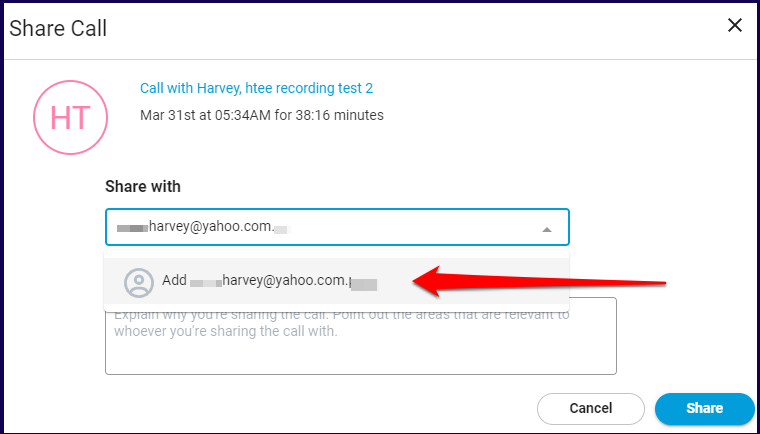
To share a call externally, key in the email address of where you want to share the call. A dropdown will appear giving the user the option to add the email address into the field.
Once the email is added, the External Sharing settings section is displayed.
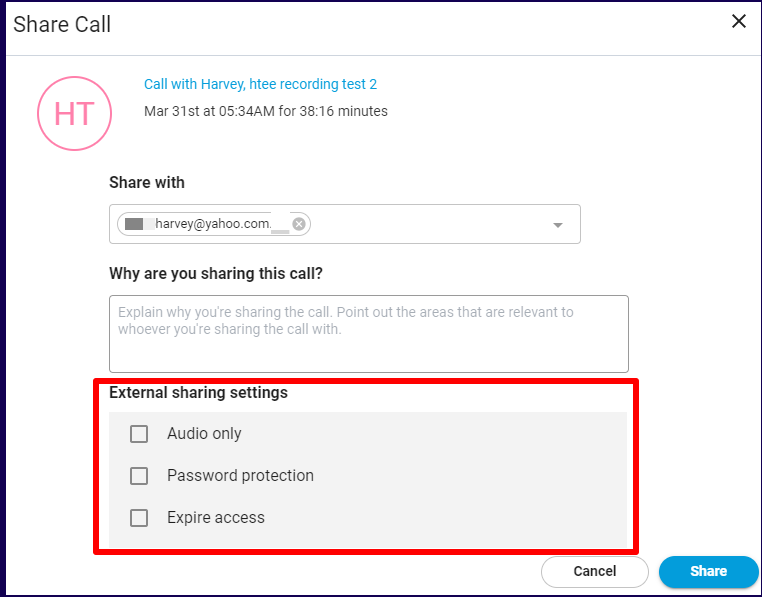
The External sharing settings section provides the following fields:
- Audio only - Use this if you want the recipient of the share to view only the audio of the call.
- Password protection - Use this to add a password protection that the recipient must key to view the call.
- Expire Access - Use this to set a time limit to when the access to share expires.
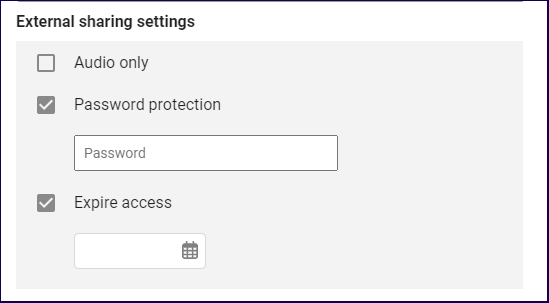
Once the external share is confirmed, users may copy the external link through a button that appears once the share is confirmed.

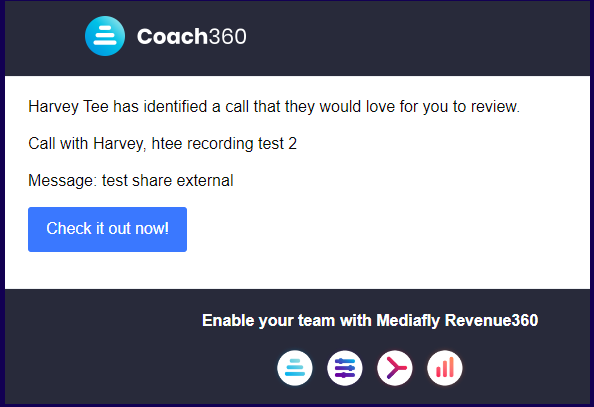
An email message is sent to the external share indicated.
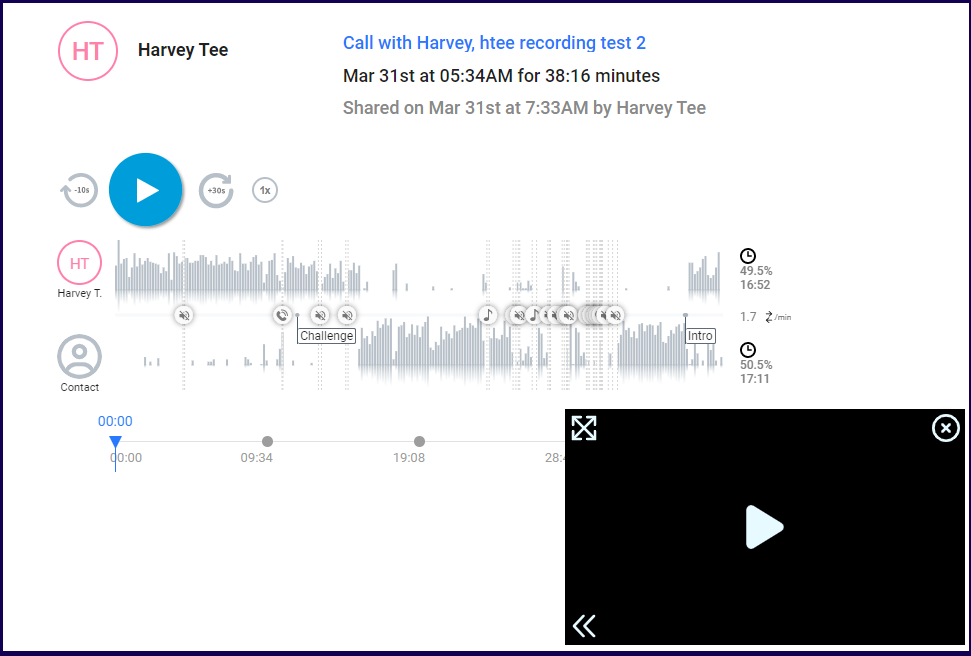
Accessing the external share will provide a simple page of the call tracker and the video.
Call Controls
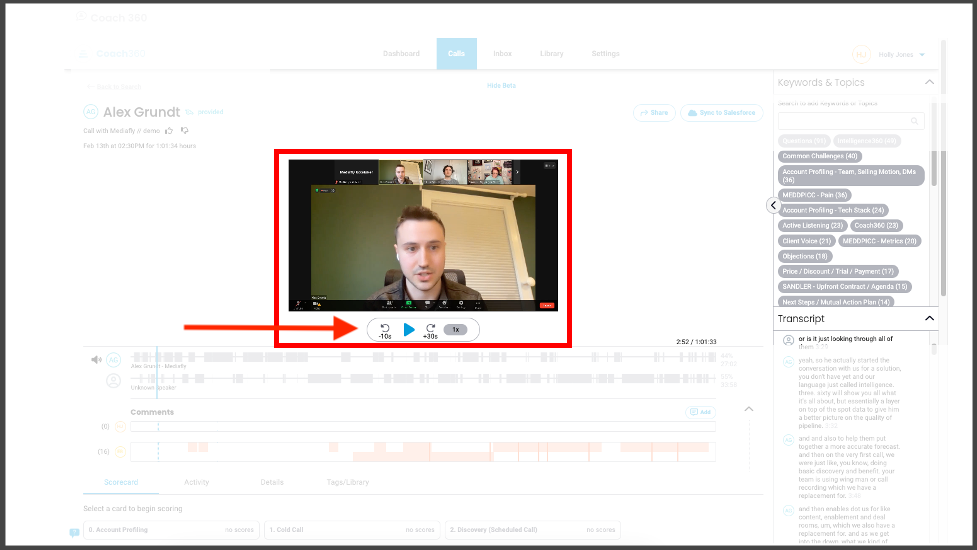
Call controls allow you to control the video or audio recording on the call. These controls are similar for both types of calls with the exception of no video screen on audio calls.
These controls allow you to play, pause, rewind 10 seconds, fast forward 30 seconds, and adjust the playback speed of your call.
Multi-Speaker Talk tracks
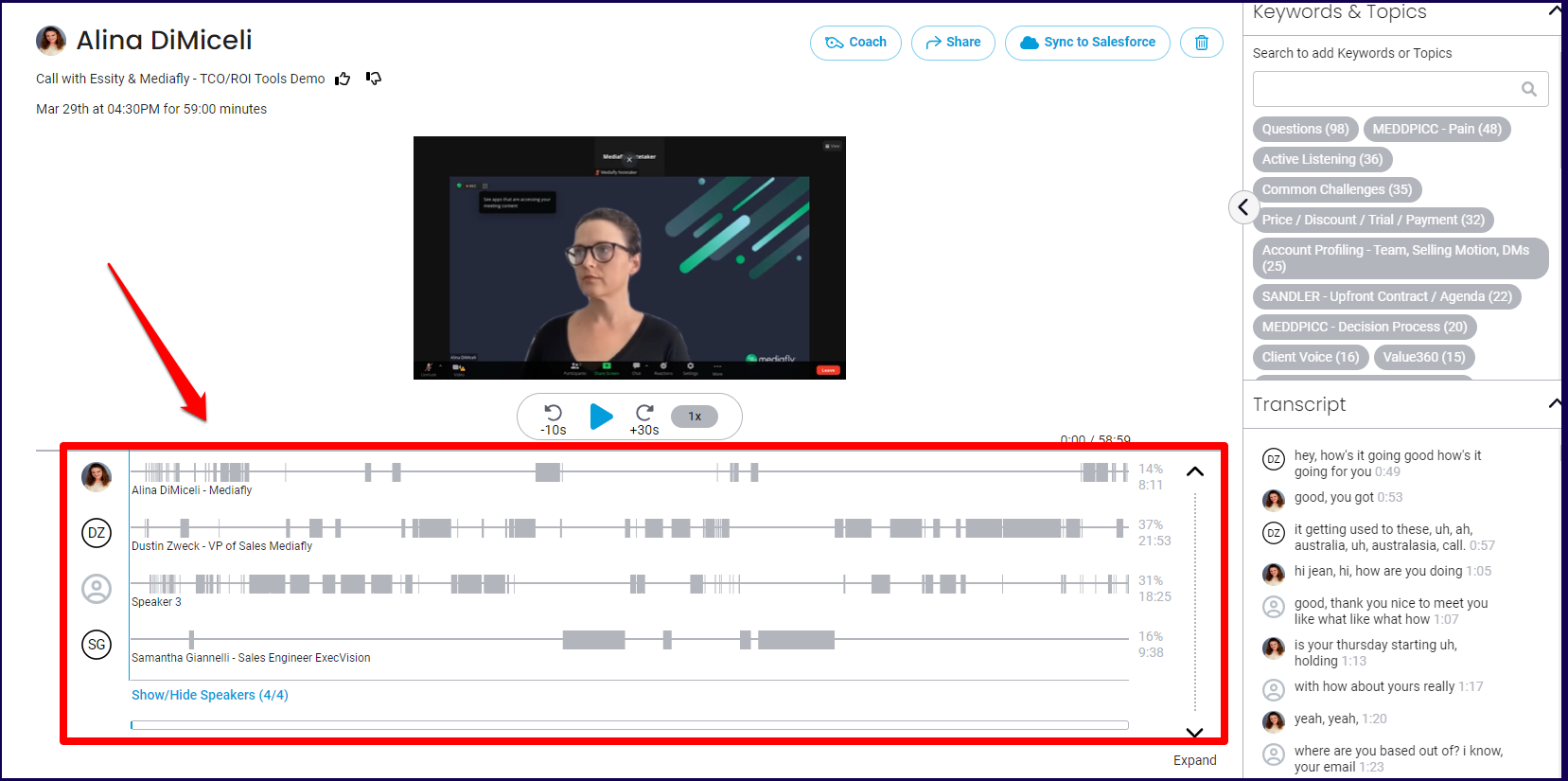
Talk tracks are a visualization of who is speaking on the call and when. The multi-speaker talk tracks allow you to see the talk tracks of every person. Depending on the settings of the call uploaded, numerous speakers may appear on the Multi-Speaker tracks.
Clicking anywhere in the talk track will automatically navigate you to the corresponding section in the transcript.
Keywords & Topics
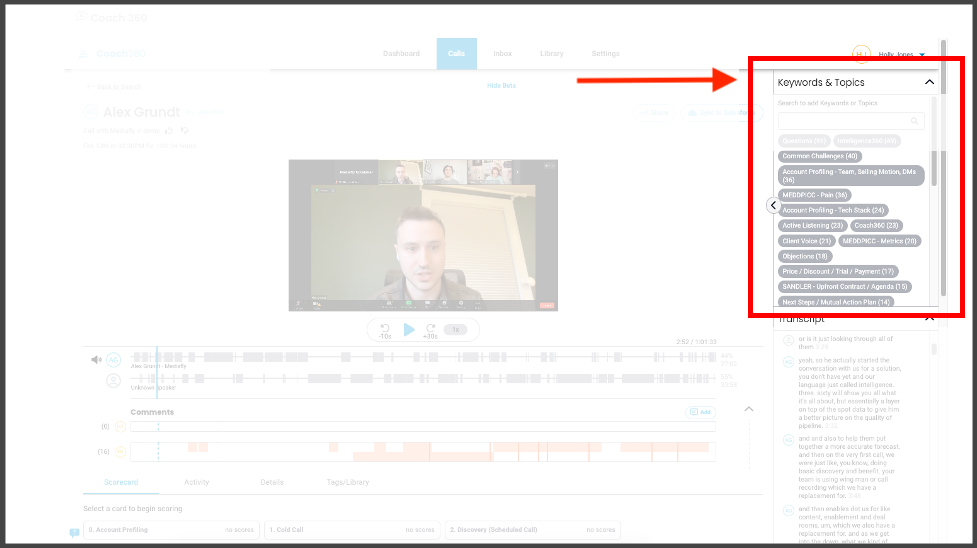
Topics and their associated key words will be tracked and surfaced with information on the number of mentions. For example, if keywords within your “Active Listening” topic were detected 15 times, the topic “Active Listening” will be displayed with “15” in brackets.
To see where these keyword mentions occurred, click on the desired topic. The topic will be highlighted in a specific color and correspondingly colored dots will be plotted on the talk track for easy reference. Additionally, the transcript will be filtered to display only keyword mentions until your selection is cleared.
To search a keyword or topic, enter your search term in the search box. Matching topics and keywords will be listed and you can select a keyword or topic to see where it is mentioned in the call.
For more information about Topics, see here.
Transcript
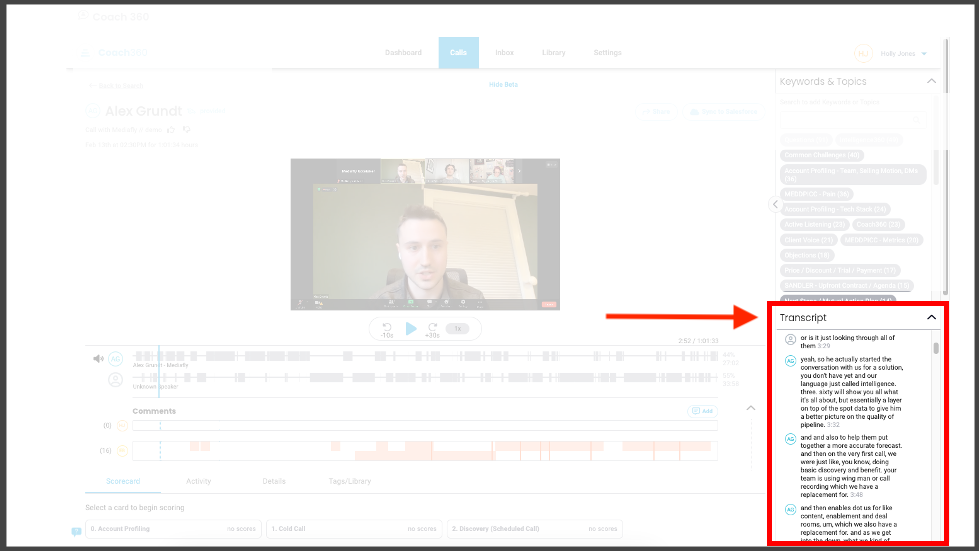
The transcript of the call, complete with speakers and timestamps is available on the right of the screen.
The transcript can be navigated by scrolling, clicking in the talk track, or interactions with keywords and topics. If you want to transpose the transcript elsewhere, click the copy icon to copy the transcript to your clipboard and paste in your desired location.
Comments
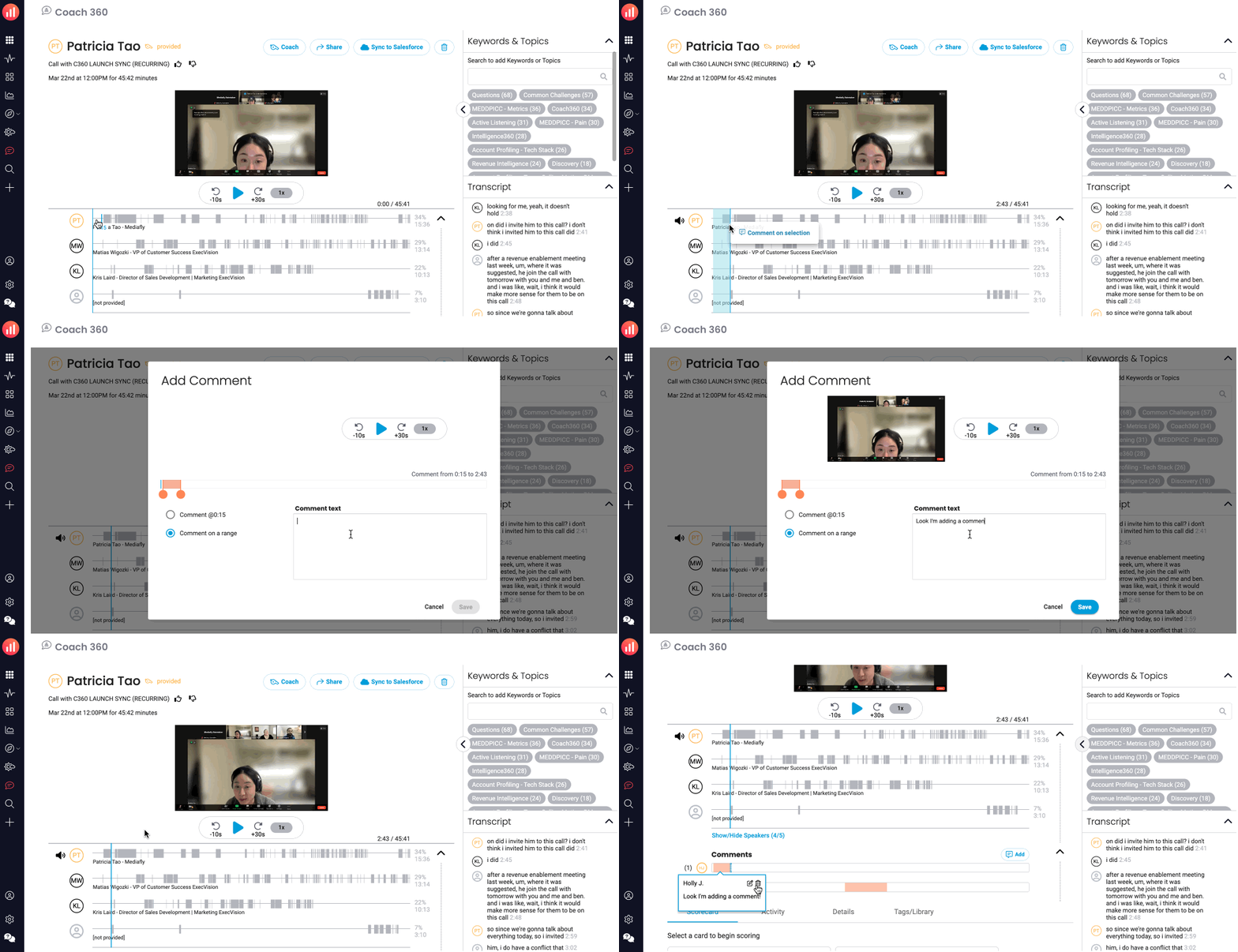
You can add a comment(s) to a call using both the speaker track & the comment bar.
Add comment on speaker track
- Click a spot or highlight a section in the speaker track
- Click "Comment on Selection"
- Enter Comment
- Click Save
Add comment on comment bar
- Click a spot or highlight a section in the comment bar
- Enter Comment
- Click Save
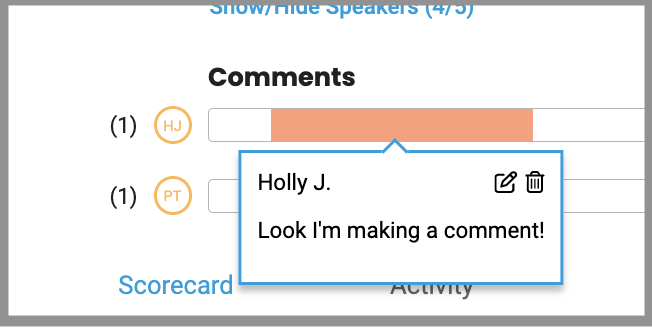
Either way, once added you can hover over the selected section on the comment card to see comments. If you created the comment, you'll have access to both an edit & delete button.
Call Summary* / Scorecard / Activity / Details / Tags & Library
Tabs for Call Summary, Scorecard, Activity, Details & Tags/Library can be found beneath the talk track & comments.
Call Summary*
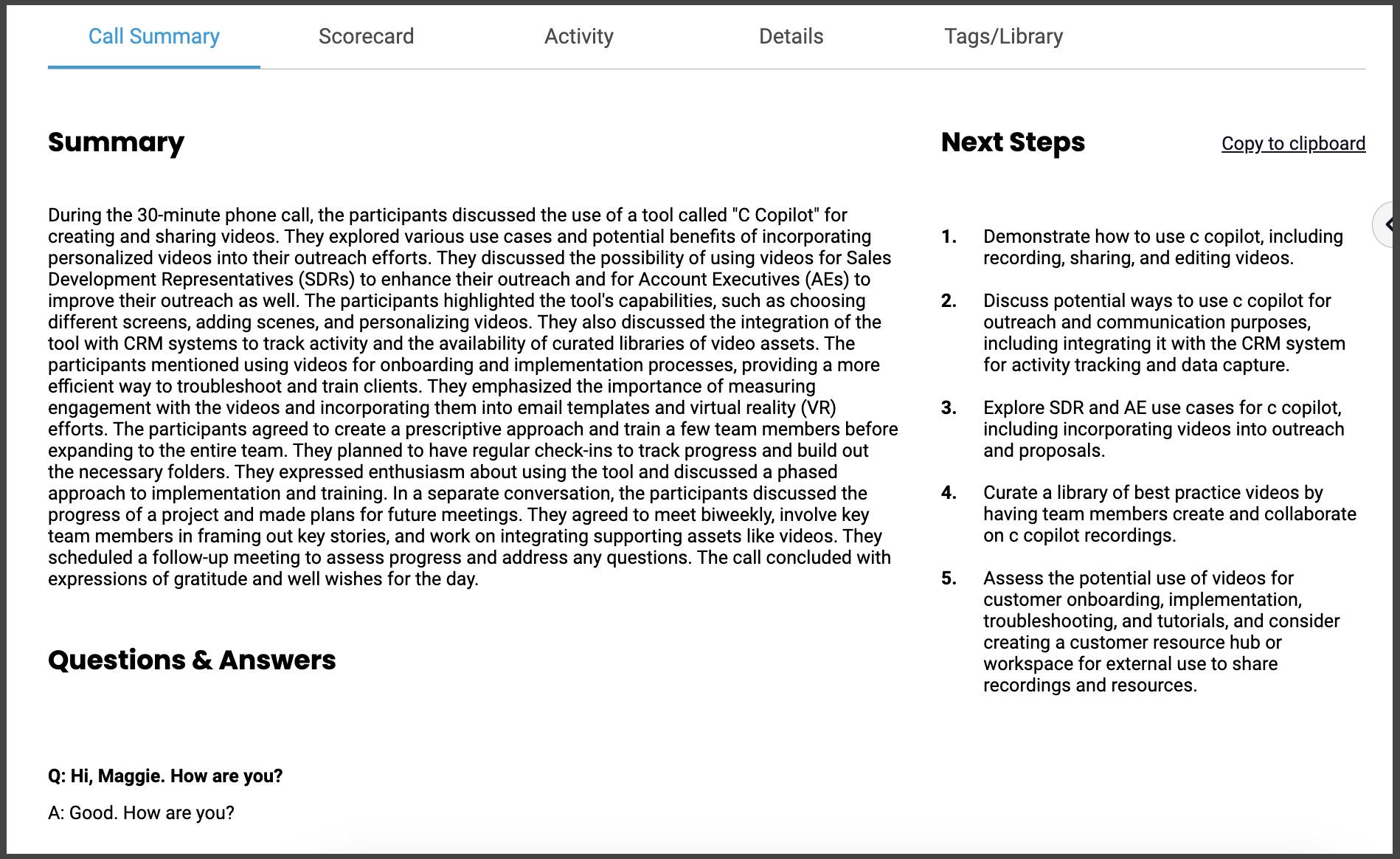
Our AI call summarization uses generative AI to summarize calls, determine & list next steps, and isolate questions/answers from the call. Click on the Call Summary tab to inspect.
*If this feature is not currently enabled for your org, click here.
Scorecard
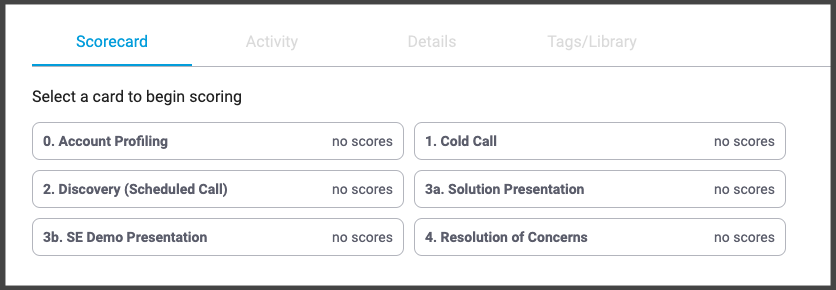
A Scorecard is a checklist for how the call should have gone. This empowers reps to grade themselves against key elements identified by their team. Managers can also grade the same conversation to identify where gaps exist between the rep and management.
Activity
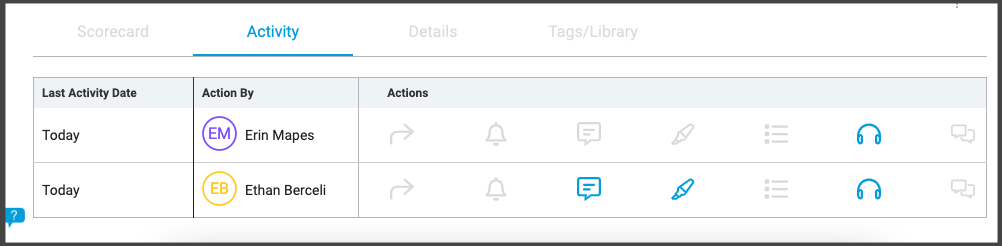
The activity tab will show which actions have been committed by whom on the card You can hover over any of the icons to view activity details. The available actions are: shares, alerts, comments, highlights, scorecards, percentage of the call the user has listened to, and user requested feedback.
The icons in blue have actions for that user, the ones in gray do not.
Details
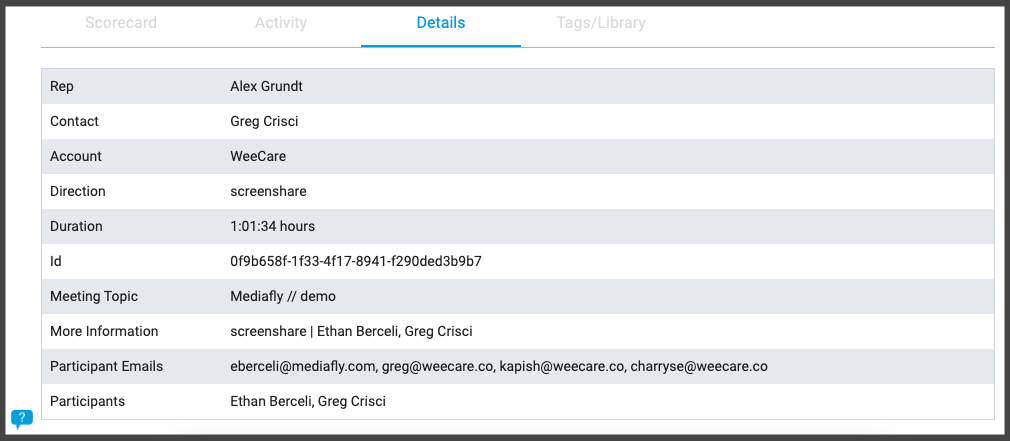
View a breakdown of all the data ingest by Coach based on where the call is coming from (Zoom, Outreach, etc.). Key details also show at the top of the call card and in the call library.
Tags/Library
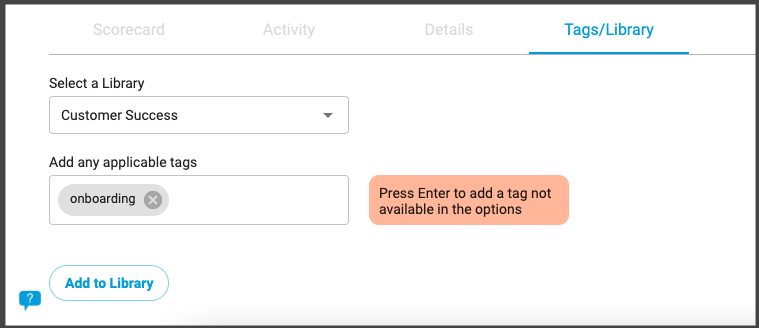
You can add a call to a library, then you can specify how it relates to that library based on the tags.
Replies have been locked on this page!