
Warning: JavaScript is required for this website to function properly.

Please allow JavaScript from *.useresponse.com to load.

Mediafly Mediafly
  • Home
  • Topics
  • System Status
  • Mediafly Product Board
  • Submit Ticket
Login
MediaflyKnowledge BaseDoolyWorkflow
FAQs Knowledge Base
Engagement Value Advanced Insights Coach Genius Drive Resources Getting Started Content Getting Started with Mediafly Engagement Apps & Requirements Create a Mediafly Support Login Create a Mediafly Support Login Dooly Setup Inspiration Pipeline Notes Workflow Templates Playbooks Dooly Spaces Integrations
Related Articles
  • Reports and Email Notifications
  • Advanced Vitals Configuration
  • Deal Summary
  • Commenting
  • Recommendations
  • LinkedIn Profiles
  • Bulk Update Records
  • Dark Mode
  • Deal + Account Vitals
  • Record Overview
  • Opportunity Products
  • Converting Leads
  • CSM Tips for Managing Accounts
  • Opportunity Contact Roles
  • Field Sets
  • Quick create Salesforce records in Dooly
  • Keyboard Shortcuts in Dooly
  • Create New Contacts
  • Create and Manage Tasks in Dooly
Properties
Author Laura L.
Tags imported-from-zendesk, Dooly

Dark Mode

Make working in Dooly easier on your eyes!

Switch on dark mode in Dooly for increased focus and less eye strain while you’re workin’ those deals!
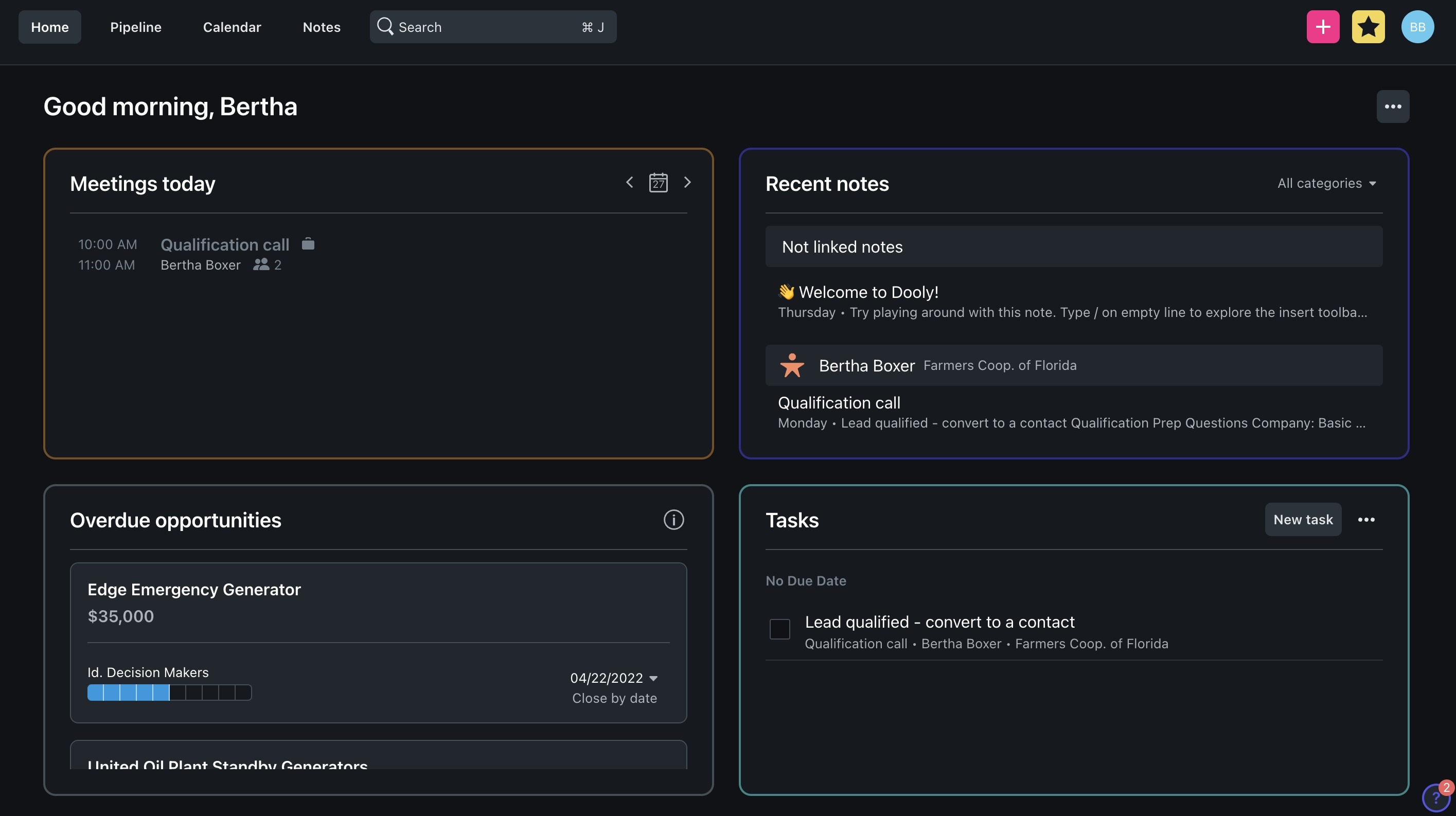
Here’s how to enable dark mode:

  1. Click on your icon in the top-right corner

  2. Select Settings

  3. Select My Profile

  4. Under Preferences, enable Dark Mode

Explore more tips for boosting your sales productivity with Dooly.

Is this article helpful?
0 0 0
Please help us make article better!
 
Powered by: UseResponse - Knowledge Management Software
No connection Real-time notifications may not work